Showing posts with label Technology. Show all posts

Sunday, June 4, 2017

I Bet You Didn't Know I Use Google

I have a secret...I use Google.  A lot.  It feels like all I have posted about lately is, "Google this," and "Google That."  Well there is a reason for that.  Not only because it is part of my assignment for my masters course, but it truly does have some more amazing features that I need to tell you about!


I'm so glad you think so, Ron!  We have a lot to cover today.  Fasten your seat belts, friends. Here goes...


Today we are going to cover the basics on:

  • Google Classroom
  • Google Calendar
  • Google Keep
  • Google Photos
                              ...and how you can use them in your MUSIC classroom.

Google Classroom

Here is a quick list of the features that stuck out to me when looking into Google Classroom.  


Want to see what all of this actually looks like?  Watch this:


Now check this out!  These are very quick tutorials (all in one place) for you to see the basics of Google Classroom.  It shows you how to:

  • Create a class
  • Add students
  • Create an assignment
  • Ask a question
  • Post an announcement
  • Grade student work
  • Share student resources
  • Reuse posts
  • Schedule posts
  • Add co-teachers
I created a Google Classroom for the beginning of the school year with my older students.  I am on a mission to rid my older students of being self conscious while singing.  I have created some beginning of the year activities and placed them in Google Classroom.

Here Is How I Would Start To Use Google Classroom In My Music Classroom


1. The first thing I posted was a "Get to Know Mrs. Bowden" presentation.  This is there for them to look at if they would like.  I also have it in the ABOUT section, for easy access for parents to look at if they would like.

2.  Then, I posted a question, "What would the perfect music classroom learning environment look like to you?  This could include topics that you would like to learn more about, personality of your teacher and classmates, activities, routines, expectations, instruments, units, seating arrangements, reward days. and so much more!

Reply to 1 other classmate's response in a positive, constructive way.  If you disagree, explain why you disagree."


3.  I asked them to rate themselves with a poll.  This is the view where you and the students can quickly see how everyone else rated themselves in the class.


4.  Next, I will have them watch some videos on teamwork and answer the following questions.

  • How can the support of your classmates (your team) boost your confidence while singing alone?
  • How can you support a classmate that did not rate themselves with the highest confidence level?
  • What can you do for yourself to boost your own confidence?


5.  Throughout this process of team-building and boosting levels of singing confidence, we will do some activities to aide all of this.  Students will begin this process by answering interview questions.  Then, throughout the year, they will monitor their progress by taking a survey and view the results of each survey.  We talk about the statements they wrote on their survey and place them in categories.  Since students will frequently be accessing these documents, I created a folder for the class which holds these files for them to access at any time.  If you would like to view the documents I have created, the links are below.


I hope this gives you some ideas on how you can start your own Google Classroom in your music room.  

Google Calendar

Ways that you can use Google Calendar in your music classroom: 
      ·        post class events
·         post rehearsals
·         post performances
·         create new calendars for different performing groups to organize them
·         share the calendars with participants and parents
·         add attachments to calendar events
·         embed into blog if you use one for your classroom


Here is how to create and share your Google Calendar.  If I had a choir schedule and a strings schedule with different groups of students, I could create a calendar for each of them so that I can share the individual calendars with the participants and parents.  However, I can see both schedules in my calendar at once if I choose.  Color coding the calendars makes it easier to visually organize. 


Watch this to add an attachment to an event in my Google Calendar.  


You can also explore the Google Labs.  My favorite is the countdown timer to my next appointment.


Google Keep

Google Keep is an app that lets you take notes in a variety of ways. 

Here is a quick looksie:


 Some features that grabbed my attention of how to use Google Keep are:
  • create shared sticky notes with students
  • use for task management
  • note-taking
  • screenshot something and paste into Keep- it can turn into a checklist (ex. recipe)
  • search for items in your Keep in the search bar 
  • it can read words from a picture/screenshot
  • to-do list transfers to all devices. Ex. someone caught you in the hall and you need to follow up some how-add the item on the go!
  • edit at the same time
  • transfer notes to a Google Doc
  • transfer multiple notes into 1 Google Doc
  • location reminder gives you a reminder when you have reached the location destination.  Ex. remind yourself to put the camera battery charger in your teacher bag when you get home.
  • color code notes based on activity/topic
  • give audio feedback to students by sending to their Keep
  • can label notes with search terms
  • create drawings and send to Google Docs if needed
So many features!  I think the one that will change my life the most is the location reminder.  I'm always needing to bring stuff to school from home, but often forget.  I remember while at school, but when I am at home it all goes out the window.  If only you could be a fly on the wall!

I thought this PODCAST was really useful in getting ideas for use in the classroom.

If you need a visual on how this works, check out this video as well.


This was a really cool idea for ways to leave comments.  I often find that when I leave feedback for students, it tends to be the same a lot of the time.  So, I write the same feedback over and over.  This is a creative way of keeping your comments in one place, finding them, then copying and pasting into your comment feature of the document you are grading.  You can even use them year after year if you use the same projects.


Google Photos

The last thing we are going to touch on today is Google Photos.  I think I would use this the most for sharing what is going on in the music room with the community/parents.  One of the most amazing things about technology, is that it can bring parents into your classroom, without actually being in your classroom.  Do parents think all you do is sing all day?  

       "Oh my goodness!  You teach guitar?"  
                                "Wow, you can describe what a sound wave is?"
 "Cool!  You know what Irish folk music sounds like?  That is where your great grandparents were from!"

...Things you may hear as an elementary music teacher.


How can you get over it?  By changing their schema, of course!  Give them new experiences to pull from.  How?  I thought you'd never ask!  This is how I would do it.

Step 1: Set your photos to sync to Google Photos from your school devices.  I usually have my iPad handy and will take short video clips and pictures of students in action.


Step 2: Decide when  to share these photos with the parents.  At the end of a month-long unit?  After a "teachable moment?"  A fun activity they could do at home with family?  A performance?  Rehearsals of a performance as a promo?  The ideas are endless!


Step 3:  Create an album and share with the community/parents through the avenue that is best for community.  Please be aware of your district's policies on media releases.


I warned you it was going to be a wild ride today!  We covered a lot of goodies!  I hope that you found some of this useful.  I could have made a different post on each one of these Google features, but this is a good overview for you to get acquainted with them, and then dig in deeper if you choose.  Happy Googling!

Sunday, May 21, 2017

The 80s AND Titanic? So Much To Reminisce About In 1 Post.

Search Tricks Through Google...Who Knew? 

I know I have posted on some search tips before, but I wanted to share a couple more with you: the quote and filetypes feature.  When you place quotes around your search terms, it will only pull those specific search terms.  No need for that other junk...unless you're Oscar.  Then you'd probably love all the extra garbage.


Searching for specific filetypes can save years off your life.  I wish I would have known this feature when doing all of my research papers while getting my masters.  This would have given back many-an-hour to family time.  Maybe learning of this, can save you some time as well.  Take a look at the presentation below and learn how you can incorporate these search tips into your daily life as well.


Alert! Alert!

Ok, this is a totally cool tool that I had no idea existed.  I promise, you are going to love this one.  Have I ever lead you astray?  Ok... don't answer that...I know we went down some theoretical black holes last week.  


(Everyone needs a little grumpy cat in their lives.)


No theories here...this is concrete.  Google will create alerts for you of "happenings" on the web.  I came up with a list of things that I would like to be notified on.  These things are what I would like to learn more about and to improve upon as a teacher.

  • coding in the music classroom (our school is getting big on this)
  • cooperative learning in the music classroom (such an amazing way for students to be held accountable for their learning)
  • makerspace in the music classroom (kids thrive on exploring)
  • scratch in the music classroom (this is a neat software that I just came across and would like to learn more about)
So, I put these 4 items into my google alerts, and voila!  I should be getting notifications of when new items are posted with these terms soon.  Here is a screenshot of the alerts that I used.  Get started at https://www.google.com/alerts to create your own alerts and make sure to watch this video for more detailed info. 


Custom Search Engine

Are you ready for another gem?
No, no, no...gem with a 'G!'  
What was that?
Was I a product of the 80s?  Gaw!  How did you know??  
And, yes, we all miss the pink, sparkly hair.  

Back to the topic at hand.  Google has made it possible for you to customize the search engine.  Don't want your students to have to sort through all of the crud online?  Want them to search factual information, and not muddle it all up with useless and/or incorrect information?  Define the sites and search terms that can appear in their searches for their research.  

My 5th grade students do a guided inquiry project on music genres.  Their research days in the library are always the most challenging.  They struggle on finding sites that are suitable and informational for what they need.  So, I created a CSE with some good websites that they can use.  I did some sample searches, and wowzers!  It was amazing.  I am undeniably going to use this when we do our research next year.  This is going to save them so much time.  Here is my CSE on music genres.  Go ahead and try it out.  Search for 'jazz instruments' or 'kabuki theater' or 'rock history.'  You should get some great information.

Music Genre Research Search Engine
Did you find some good info?  Pretty cool!  I am VERY excited about this, and cannot wait to use it with the kids!


Gmail

Are you a Gmail user?  I have found some useful gmail tips that could be some more life-changers for you.  Are you a To Do list maker?  I am.  If I don't write it down- right then and there- it is lost forever in the abyss of my mind.  It could be until the next lunar eclipse until it surfaces again.  There are a lot of unknown gems of Gmail that you all need to know about.  Check these out to get you started!


Saturday, May 13, 2017

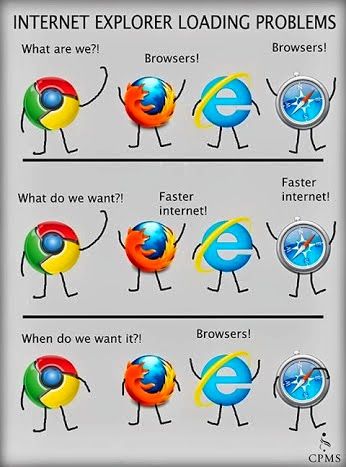
"What do we want?!" ..... "Black holes and telepathic abilities!!" ...... "When do we want it??" ..... "Now!"

 What is a "browser?"


Basically, a browser is the gateway that you take into the internet- or black hole- if you will.  Some people think black holes can make you jump through time or dimensions.  Let's think of Google Chrome as one of those cool black holes that suck you up and lead you to a dimension in which you can connect with people without actually speaking to them, but they know what you're thinking in an instant.  Almost telepathic-like.  
You can summon "your people" to improve your way of life.  Almost instinct-like.  
You can-wait a minute!  
You can! 
You can do that now!  


Your first step would be to download the black hole.  A.K.A. Google Chrome here.


Snap Out Of It!!


Back to reality folks!  I am trying to talk to you about black holes and how we can travel to different dimensions through your browser!  Geez-louise!  

Are we back?

As I was saying....Google Chrome can instantly communicate what you are thinking without speaking, but typing or using visuals like pictures or videos.  Searching for like-minded people?  Google Chrome has you covered!  

Ok, ok maybe I misled you.

There is no telepathy involved, but if you really think that I was going to answer that in a music education blog about technology, you might need to get your ticker checked.  If I had those answers, I would be doing something completely different with my life, folks. 

Navigating the 'black hole'

I'll point out a couple features to get you started in Google Chrome.  These are some good tips to get you started with navigating your browser, if you are not used to Chrome.  


How does it know what you want, when you don't even know you want it yet??  Maybe the browser is telepathic!!  

Web Apps and Extensions

Remember CDs? 


I know, Obi-Wan.  Times have changed.  We took those CDs and threw them in the 'black hole.'  In this new dimension, they are Web Apps.  Cuh-raaazzzyyy, I know!!!!  Here is how they work now.  Check out this video on Apps:


And here is one on extensions:


Music Education Apps??

So glad you asked!  These are a few apps that I have come across specific to music education.  There are so many more.  I am a little scared of this black hole that we have entered.  How do we get out of them?  We might be stuck discovering new things forever!!  


Flat is a FREE music composition app.  Sebelius? Who is that?  Ok, ok.  That was a little rough.  I'm sorry Sebelius.  We have had a love/hate relationship.  I will always remember what we had.


Flowkey is a really cool way to learn to play piano.  It will show you notation and hand position on the piano.  It has songs for beginners or advanced.  There are free songs, which of course are not full versions of songs; and there are paid subscriptions, which I am sure have full versions.


Noteflight is another music notation software.  The reason I am putting more than one here is because maybe you prefer one over the other. You know, you can't please everyone, but I can sure try!


Dubstep Balls is a pretty cool app.  I would use it for letting my students explore different sounds and how they work together.  Each ball is on loop.  When you click on one it gives a bass line, melody, or different beat.  Mix them up and see what you like!  It includes more than just dubstep.  Some genres this app includes is: house, reggaeton, electronica, hip hop, and more.


GoAnimate for Schools is the last app I want to brief you on.  This is not specifically a music app, but you could definitely use this for your music classroom.  If I had a choice of another career path, I might choose graphic design.  I love this kind of stuff.  I have always wanted a way to explain through animation to my students.  What child doesn't like cartoons?  I am thinking that I could even animate songs that the kids love.  I tried to do animations with Smart Notebook, but the timing was really hard to get while moving my mouse at the right time.  
I am really digging this app.  The catch is, you have to pay to use it.  **Disclaimer:  I have not actually used this app yet.**  However, I really think that I will splurge and pay for the 1 year subscription.  I'd like to gather up all the thoughts in my head about animations I have wanted to do, and try to knock them out in a year.  Who knows, maybe it'll be worth it to renew after a year's time.

Google+

Now for the connections to others.  Google+ is a large community of people wanting to connect.  Kind of like Facebook is a large community of people that want to connect.  Google+ has 3 sides to it:  Collections, Connections, and Communities.  (It's almost like they planned the alliteration.)  After doing some looking into Google+, I'm going to give you some analogies as to what I compared these to, so I could keep them straight.  

Collections is similar to Pinterest. 
  • You can create your own collections to post about.  
  • Others can follow your collections, if you'd like.  
  • Others cannot post or comment on your collections-just view.
Communities is similar to a blog.
  • You can create your topics to post.
  • Others can follow your connections.
  • Others can post, comment, and discuss in your connections. 
Connections is similar to your facebook or pinterest feed.
  • People that you follow will show up in your feed when they post something. 

Clear as mud?  When I thought of it in this way, it helped me keep them straight.  If you need more clarification, check out this cheat sheet for a more in-depth, but to-the-point explanation. 


Sunday, April 30, 2017

I. Need..A...Skittle.....

Speaking Volumes

I am going to reveal a story about my childhood.  
This story will speak volumes as to my character of today.  
Most likely, you will not be surprised.

When my siblings and cousins got together at my Grandma's house, we would turn every square inch of her basement into a fort. We would use blankets and every piece of furniture to form rooms and doors and secret hiding places.  Of course we always had a mission to accomplish.  
On one memorable occasion, something happened to my brother.  OH NO!! He was losing his power!!!!   He needed to power up- but how??  That is when he reached down to his spy watch that had a secret compartment.  (This was back in the 80's, so his secret-compartment spy watch was the size of a house camper.) He opened it up  and pulled out a Skittle- popped it in his mouth and said, 
 "I. Have. POWER!" 
And off he flew.  
I, of course, was losing my power every 2 minutes after that, and required an entire bag of Skittles to reboot my power over the afternoon play session.  I am sure you can image all the "power" I had after all of that sugar as a small child.  


'Pop A Skittle' Every Now And Then To Power Up Your Internet Searches.

Google is a powerful tool.  With great power, comes great responsibility...I believe a famous superhero's uncle said this.  
Eh, why not? We were on the topic of superheros.
Google produces an obscene amount of results when searching.  Nobody has time to get to the 317th page to see if it has the answer you are looking for.  Check out these videos to narrow down your searches.


Pretty cool, huh?  

Is Google Getting A Run For Its Money?

I see some competition for Google.  Have you heard of Wolfram Alpha?  This seems to be an amazing tool.  It gathers results of your search and places them all on your search page, rather than having to sort through a list of sites like Google makes you do.  It is second nature as to how quickly we can sift through all of the information that Google provides us to find the best-fit site.  However, this seems to do that for you!  Check this out!


How can we use this in the music room?  So glad you asked!
  • Study sound waves
  • Comparisons of so many things!
    • composers
    • instruments
    • genres
    • artists
    • musicians
    • music eras
    • visual arts and music
  • Study frequencies
  • Scales
  • And so much more!

Copyright?  Yes, Copyright.

I am a visual learner and love using them whenever I can.  However, artists need cred for their work, people!  Respect the time and effort they put into this.  Take a look at this last video to see how your students can find images and use them properly with Creative Commons.


Pretty "super" how some people are so giving of their intellectual property.  As a visual person, they are my "hero."

...And I Will Leave You With This.


Sunday, April 23, 2017

#socialmediaineducation

Am I the only person who has to type a hashtag several times, because I habitually place spaces between my words?!?!


Ok handsome fellow, I will try better.  But it will take me a while to obliterate years of typing experience in order to appease the occasional hashtag.

Nevertheless, hashtags and social media are the way of life; and it is not going away any time soon.  Our students don't know life without social media.  #I'monly33butstillknowwhatitwaslikeprehashtag  #canyouputanapostropheinahashtag #i'mstillworkingonthespaces #oy #icoulddothisallday

So where is the boundary between social media and your teacher role?  There is no way around it, the area is gray.  Do I friend my students?  Do I friend parents of students?  Do I friend coworkers? Do I friend past students?  The problem is that students don't know life without social media, and they most likely don't see how it can be a negative thing to connect with their teachers online.  There are benefits to social media and there are obviously safety concerns-for you and the students.  Watch this video I created using Adobe Spark on the benefits and safety concerns of social media.


In my personal social media accounts, I keep everything private and fairly unsearchable.  My friends are people that I know, and I do connect people that I work with.  I do not have anything to hide on my personal account.  I mainly post about my family and fun things that happen at work.  However, if I wanted to use it as a rant place, I would choose more carefully who I friend.  I choose to keep everything PG, so I have nothing to hide.  

Let's talk about things to hide.  There are times when everyone needs privacy, or a place to vent.  Sometimes, in fact most of the time, that should be kept with the people closest to you; maybe a friend, a significant other, or a close coworker that understands what you are going through.  Perhaps it is not the best idea to post it for the whole world to see.  


You are so wise at such a young age young lady.  Some adults don't even have this figured out. Ku-dos! (separated for syllabic emphasis)

Some think it is their duty to connect with students on social media, because they feel more comfortable confiding in an adult this way.  To this, I say (if you insist on connecting with students online): make everything you do as a teacher known to administration.  Why not start a School facebook page where teachers and students can join?  This way, administration can see what is going on and you are covering your hide as well.

Now, enough of the warning signs.  Let us talk about the productive side of social media.  As I said earlier, students are fluent in all social media languages.  Let's use it to our advantage in the teaching world!  I like using Twitter in my classroom.  I follow my district guidelines for posting, but I love that it gets parents into the music room.  What do kids usually say when you ask them what they did at school?


Well, they can't say that anymore!  Teachers can be so much more transparent with parents. Parents can use it as a way to open conversations with their child, tween, or teen.  See how I use my twitter page by following me @CHEMusicRoom.

You can also use social media with your students in  a purely educational narrative. 
Symbaloo can be used in so many ways.  You can use it to organize your own bookmarks, as they use visual tiles to help you navigate through the plethera of amazing sites that you use. Or you can use it like I do, and share vetted links with your students.  Here is the link that I share with my 5th graders when they research their music genres.  When students research on Rock and Roll, Rap, or pop genres, it makes me one nervous teacher.  However, if I send them to my Symbaloo page, I know what they are seeing, because I placed the links there myself.  You can place your own icons on the tiles and even color code them for better organization like I did.  Then, you can share the link with students- like I am here.  However, if you take a look below, this is what I use with my 5th graders.


 Padlet is a great way to have discussions and post knowledge at just about any grade level.  Think of it as an interactive refrigerator.  You are always placing proud piece of work or reminders here.  Padlet works the same way.  We always talk about steady beat vs rhythm as music teachers, right?  Take a look at this Padlet that I created with my 2nd graders.  They were to find of anything that is non-musical that occurs in every day life and say weather it has a natural rhythm or steady beat, such as a jump rope, rain falling, lightning, or a cheerleader leading a cheer.


Long story, short: 


TABLE OF CONTENTS

Chapter 1: Social Media is Never Going Away
Chapter 2: There are Many Benefits of Social Media
Chapter 3: Be Professional With Social Media

THE END

Sunday, April 16, 2017

Don't be flippant about Flippity, because it's flipping amazing.

Sooooo...how was your test DRIVE last week? I hope you like Google Drive as much as I do, and that you navigated through just fine...unlike my friend Sammy from one of my favorite movies of all time!  
Let's talk about another tool that will make you "flip."  You'll see what I did there in just a moment.  This site uses Google Spreadsheet to make your life easier.  Now maybe I'm over excited about this because I live and breath in Microsoft Excel, which is a spreadsheet.  I love codes and numbers- who doesn't?!  Honestly, I haven't done much in Google Spreadsheet, because I didn't know how much it was like Excel.  I feel like I am betraying a life-long friend.  However,  I have sat down with Excel and we have had a talk about how I can be friends with more than one spreadsheet software.  Excel took it kind of hard, but we are all going out to dinner next week to break the ice...

Anyhow...enough of my personal drama!  On to...(drum roll please)...


                         ****FLIPPITY****

This tool can do all kinds of time-saving, organizational things to make your teacher life easier.  If you're not a formula kind of gal, like me, then this is the site for you! 


How was that for a sales pitch?


The whacky waving inflatable arm flailing tube man wasn't enough?  Hmmm...shall I substantiate with some real-life scenarios to get your blood flowing?  If so, read on!  If this guy is doing it for you, click here!


Flippity is a site that can create games, flashcards, seating charts, randomize groups of all sizes, and random name picker to name a few.  It can create games like a quiz show, crossword puzzles, hang man, or bingo.  All you need to do is enter information into a template that is already made for you, click your mouse a few times, and voila!  Your students think you're a genius-again!  Take a look at this quick video to see what I am talking about:


I created some treble clef flashcards using this.  Take a look here  to access them-and feel free to use!  I did get a little frustrated on how to add images and did some searching.  So, I'll save you some time and just tell you here:  search for the image, right click on the image, copy image address, paste the address into your template.  This is how I did it, and I hope it works for you.  I'm a visuals type of gal, and I needed some flashcards that I could use yesterday in my classroom.  This worked like a charm.

One more piece of Flippity that I don't know how I've lived without is the Random Name Picker.  It has a fun spin wheel to choose individual students, but the part I like the most is that it will randomly choose groups for you as well-of any size!  


Yes, for realsies!

I love drawing sticks to randomly choose students, but when I need some quick, small groups, this has me covered!  There is one draw back though.  If you have a large amount of classes, like me, you will have to make several lists.  BUT how easy is it to copy and paste a list that has already been typed for you-most likely by your amazing secretaries?  

CTRL+C, CTRL+V, CTRL+C, CTRL+V, CTRL+C, CTRL+V, CTRL+C, CTRL+V, CTRL+C, CTRL+V!


Want some other organizational tools?  

A couple that I love are Screencast-O-Matic and SignUp Genius.  

I LOVE screencast-o-matic!  I never know if the sub I get is going to be musical.  9 times out of 10, they are not.  Therefore, when I write lesson plans, I dictate everything the sub needs to say.  I explain every music detail as if this person has no knowledge of music whatsoever.  As you can imagine, this takes a long time.  Since I discovered screencast-o-matic, I have used it several times.  I will record myself explaining concepts, playing instruments, etc.  This saves hours of writing plans.  Here is an example of something I did for a sub.


How many of you elementary music teachers do choir?  Almost all of you!  How many of your students absolutely love choir?  Hopefully, all of yours!  How many of your need to communicate to your choir parents on an on-going basis?  All of you!  SignUp Genius has been really helpful to me.  In my school, my principal does not allow the specialists to send bulk communication home.  Everything that is sent home needs to be through the classroom teachers.  His reasoning is that he does not want to overwhelm the parents-I get it. My oldest daughter isn't even finished with her first year of preschool and I'm overwhelmed at the monthly newsletter/calendar that she gets folks.  In order for students to sign up for choir, I post a link in their newsletter communications.  Then, when I need to send communication home to my choir students only, parents know that it is specific to them and don't overlook it.  It's pretty user friendly, but it does have ads.  I've never seen anything inappropriate, but it is something to be aware of when using with the community.   

If you'd like to see other time saving tools, visit my Adobe Spark page here:


Organization and Time-Savers

Remember when I talked to you about Adobe Spark?  I thought you did.  Look how amazing this non-professional made this look professional!  Do you have other time-saving tools that you can't live without?  Comment below and give us music teachers some more ideas!